One list
One list for the whole household
The whole household shares one list. Everyone can add to it, and changes appear on every phone.
Each item shows the name of the person who added it.
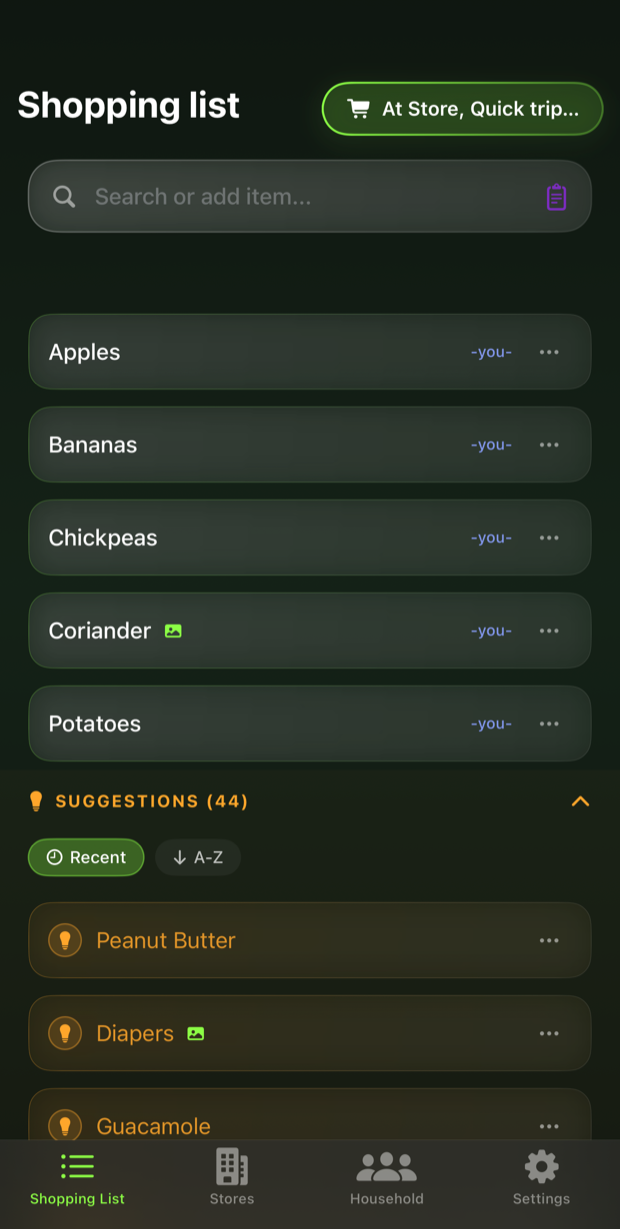
One shopping list for your whole household.
A shared shopping list for the whole household, sorted in the order you walk the aisles.
Download on the App StoreNo ads and no supermarket deals. The app is paid for by the people who use it.
One list
The whole household shares one list. Everyone can add to it, and changes appear on every phone.
Each item shows the name of the person who added it.
Aisle order
Most list apps group items by type of food. This app groups them by the aisles of the shop you are in, in the order you walk through them.
Aisle sorting is optional. With it off, the list is a plain list.
Sorted by category
Back and forth across the store.
Sorted by your walk
One pass, front to back.
Your shop, your order
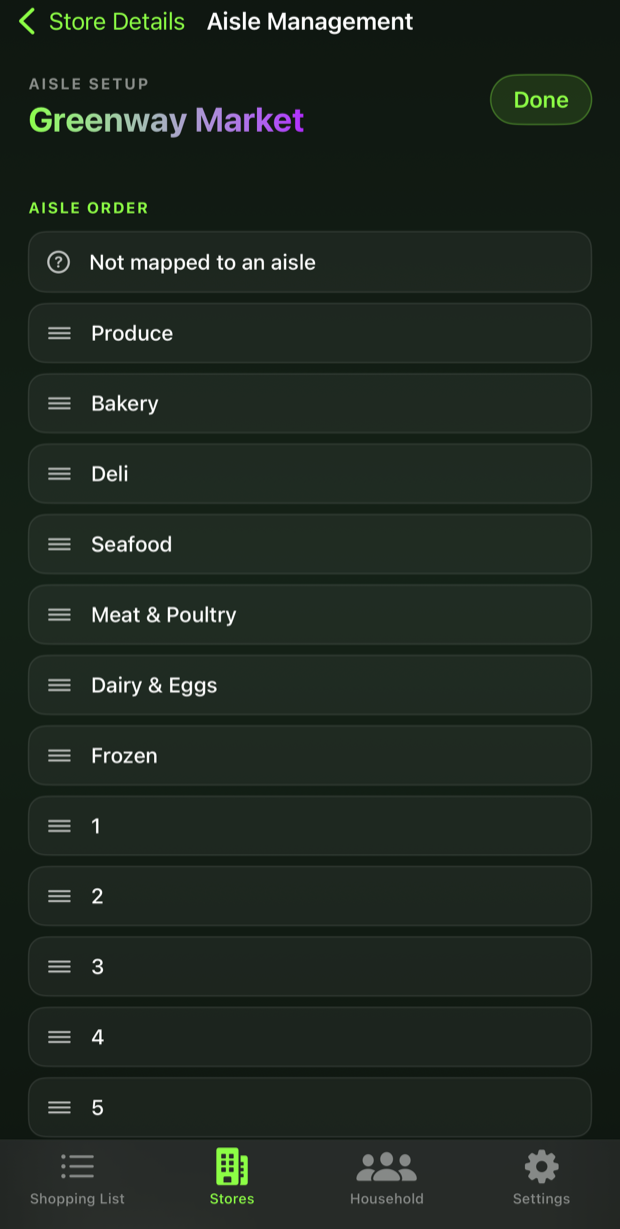
This is the aisle order for one shop. Drag the aisles into any order, and the list sorts itself to match.
Items are assigned to aisles by the app, and any item can be moved to a different aisle. The change is kept for that shop and shared with the household.
Your shops
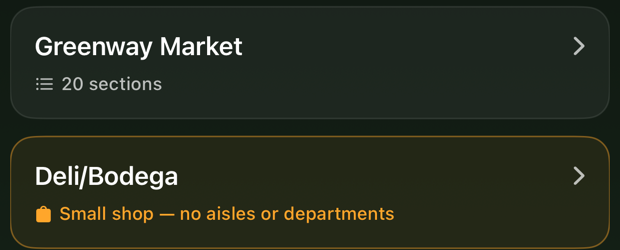
The app supports any number of shops. Each shop has its own aisle order, and the list is sorted to match the shop selected.
A shop can also have no aisles at all, which suits a small store. The list is then shown as a plain list.
At the shop
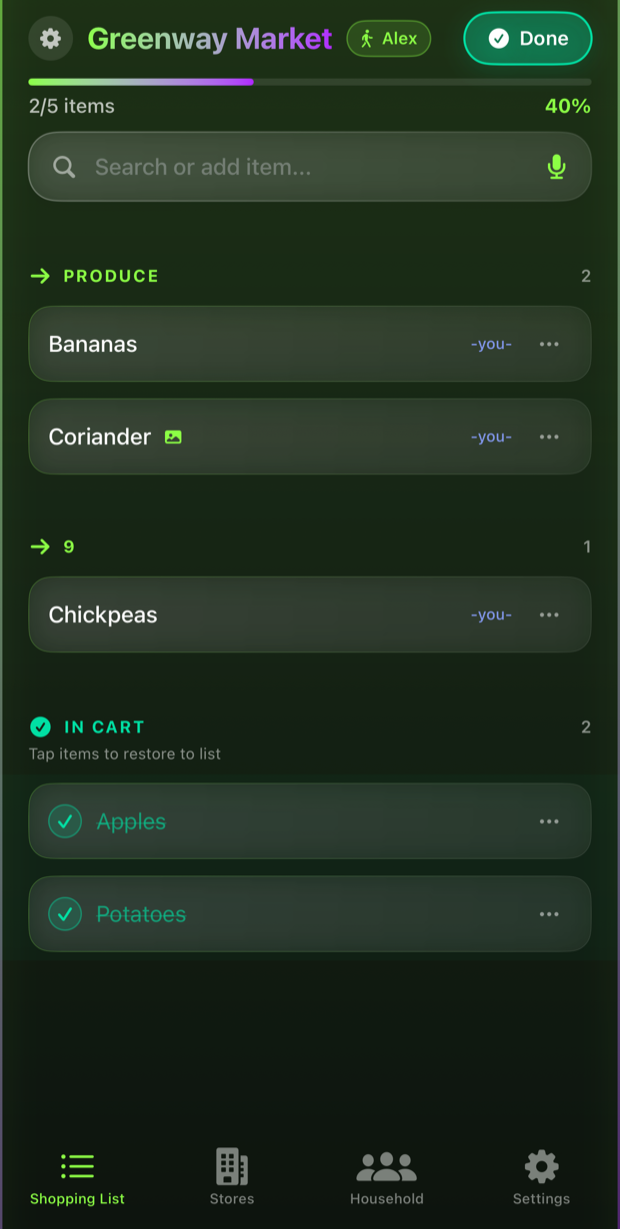
This is the list during a shopping trip. Items are ticked off as they go into the cart. Everyone in the household can see the trip in progress and which items are already in the cart.
Items with no aisle assigned are shown in their own group at the top.
Splitting the trip
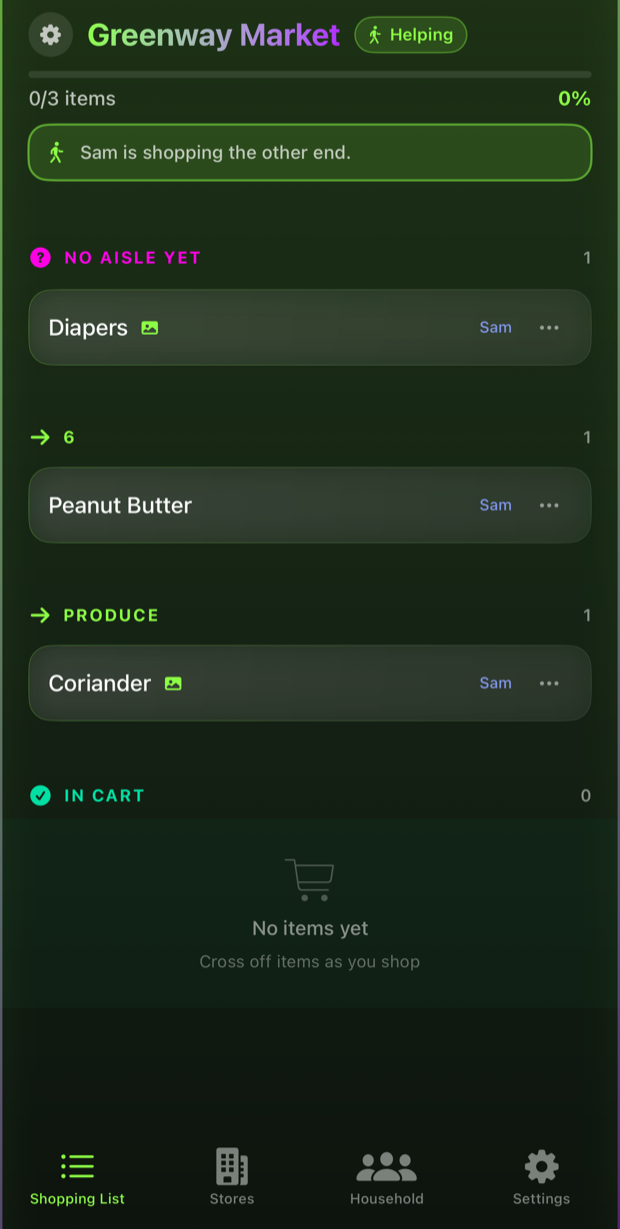
Two members of the household can shop the same trip together. One asks to help from their phone, and the shopper approves it.
The helper's list is in reverse aisle order, so the two shoppers start at opposite ends of the shop and meet in the middle.
Both are ticking off the same list, so each can see what the other has already picked up.
Handing it over
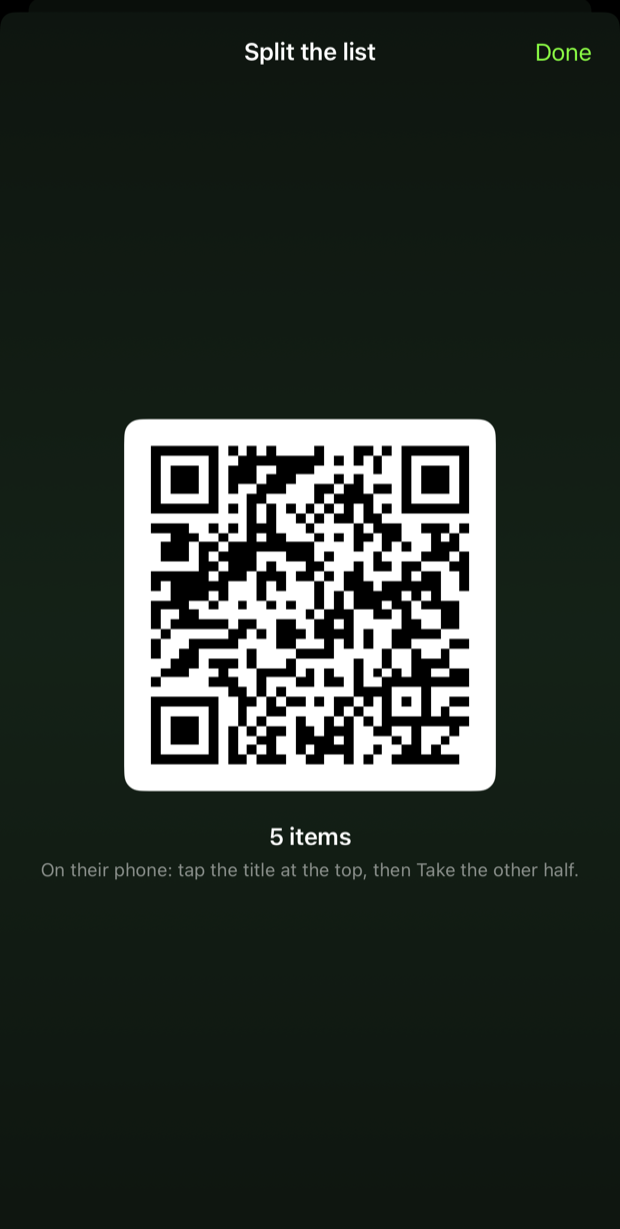
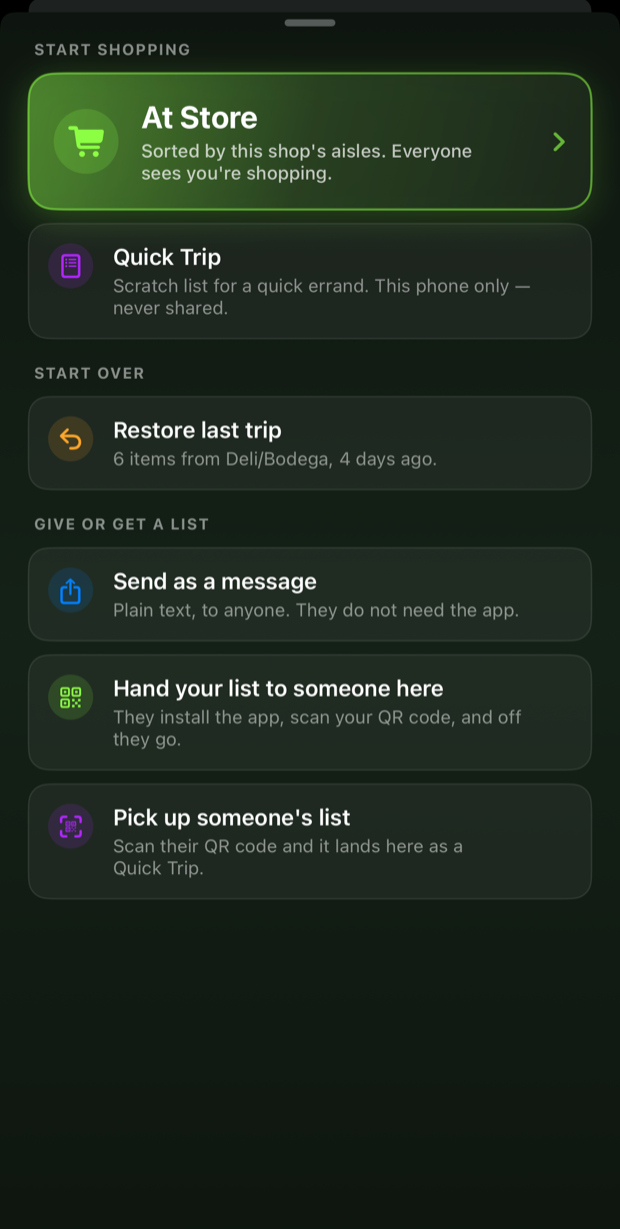
The list can be handed to someone outside the household with a QR code. They scan it and get a copy of the list on their phone.
They receive only the list. They are not added to the household and cannot see past trips or later changes.
Household invites are for people who live with you. The QR code is for everyone else.
Photos & notes
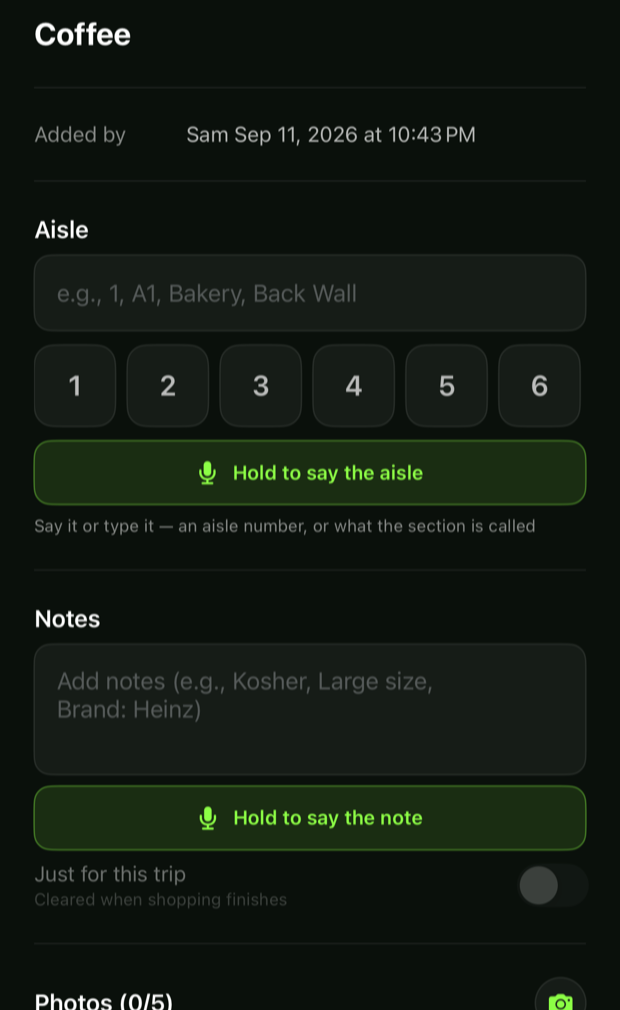
This is the detail screen for one item. An item can have a photo, which is useful for a specific brand or product.
An item can also have a note. A note can be set to clear at the end of the trip or to stay on the item.
Each member of the household has a colour, shown next to the items they add.
Adding items
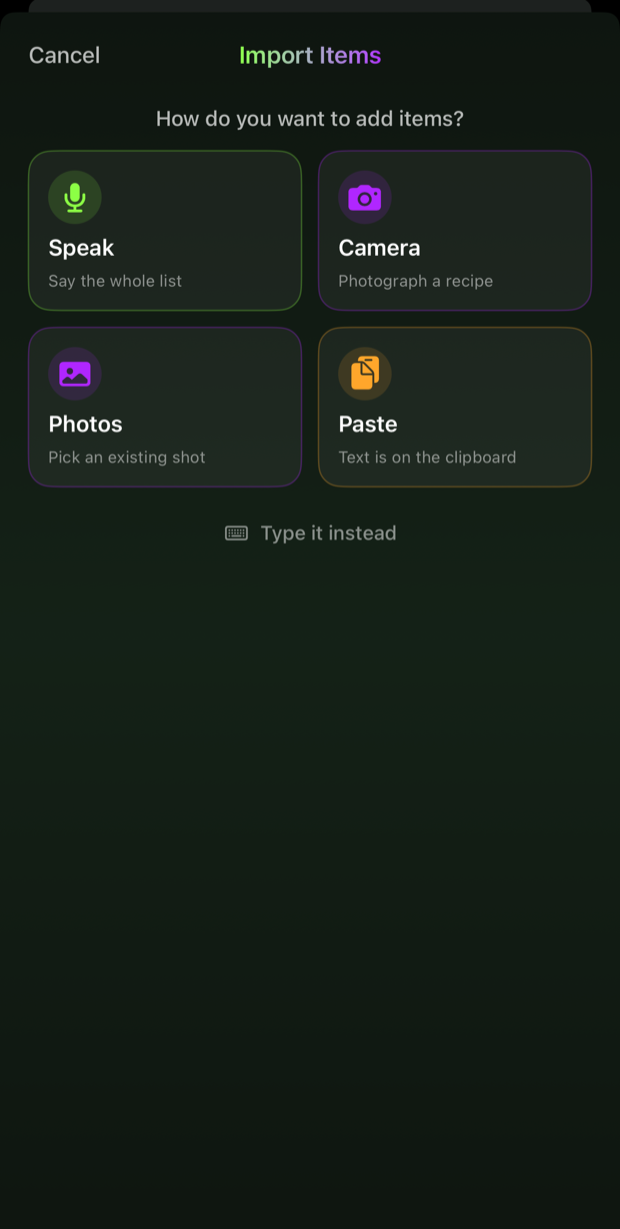
Items can be added by speaking, by photographing a recipe, by choosing a photo, or by pasting text. All four go through the same review screen before anything is added.
Checking before adding
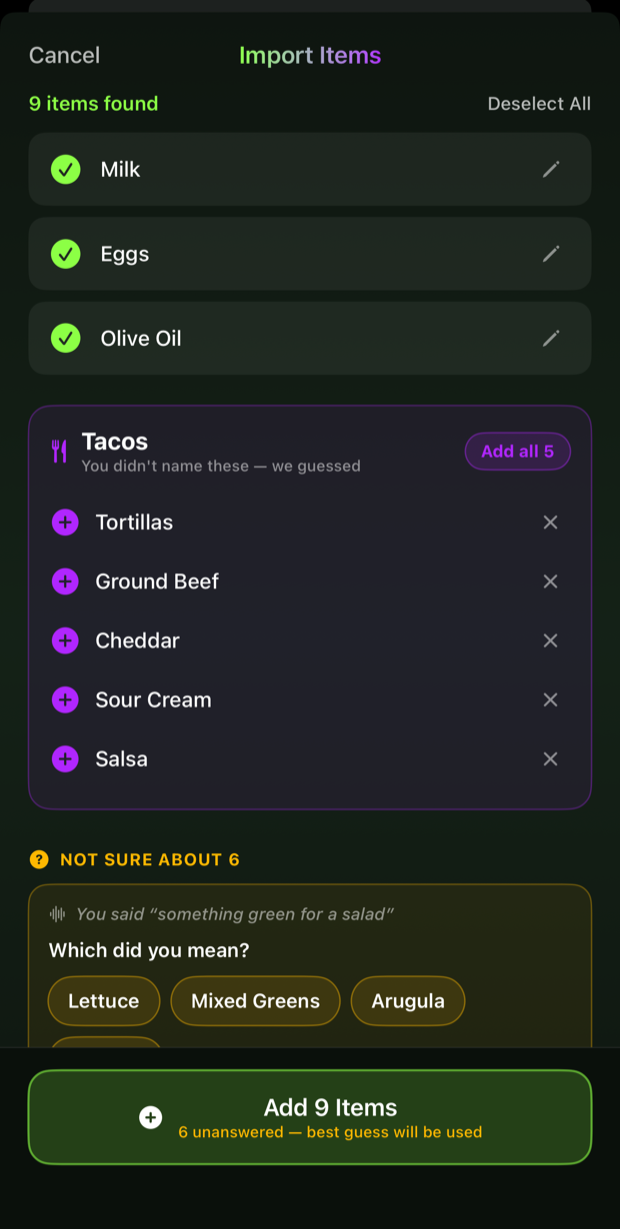
This is the review screen after a list is spoken, pasted, or photographed. Each item is listed separately, and a named dish is expanded into its ingredients.
Anything the app is not sure about is marked, with a choice of what was meant. Nothing is added to the list until it is approved.
What else it does
The list is stored on the phone and works without a signal. Changes are sent to the household when the signal returns.
Items bought before are kept as suggestions, so a new list can be built with a few taps.
A whole list can be dictated in one go. Each item mentioned is added as a separate item.
Text pasted from a message, a note, or a website is turned into separate items.
A photo of a recipe or a handwritten list is read, and the ingredients are turned into items.
A meal can be named instead of its ingredients. The app produces the list of things to buy for it.
Items found by dictation, pasting, or photos are shown for review first. Nothing is added to the list until it is approved.
The app keeps a count of trips, items, and time spent shopping. These numbers stay on the phone.
Anything that deletes data shows what will be deleted before it happens.
The list can be sent to anyone as a plain text message. No app is needed to read it.
Quick trips
There are two kinds of trip. A full trip is shared with the household and sorted by aisle. A quick trip is a short list kept on one phone only.
A trip that ends early or at the wrong shop can be restored with one tap.
Why not a shared note?
Straight answers